Alayacare Supplier Confirmation Portal (SCP)

Introducing a new way to confirm your services: Alayacare Supplier Confirmation Portal (SCP)

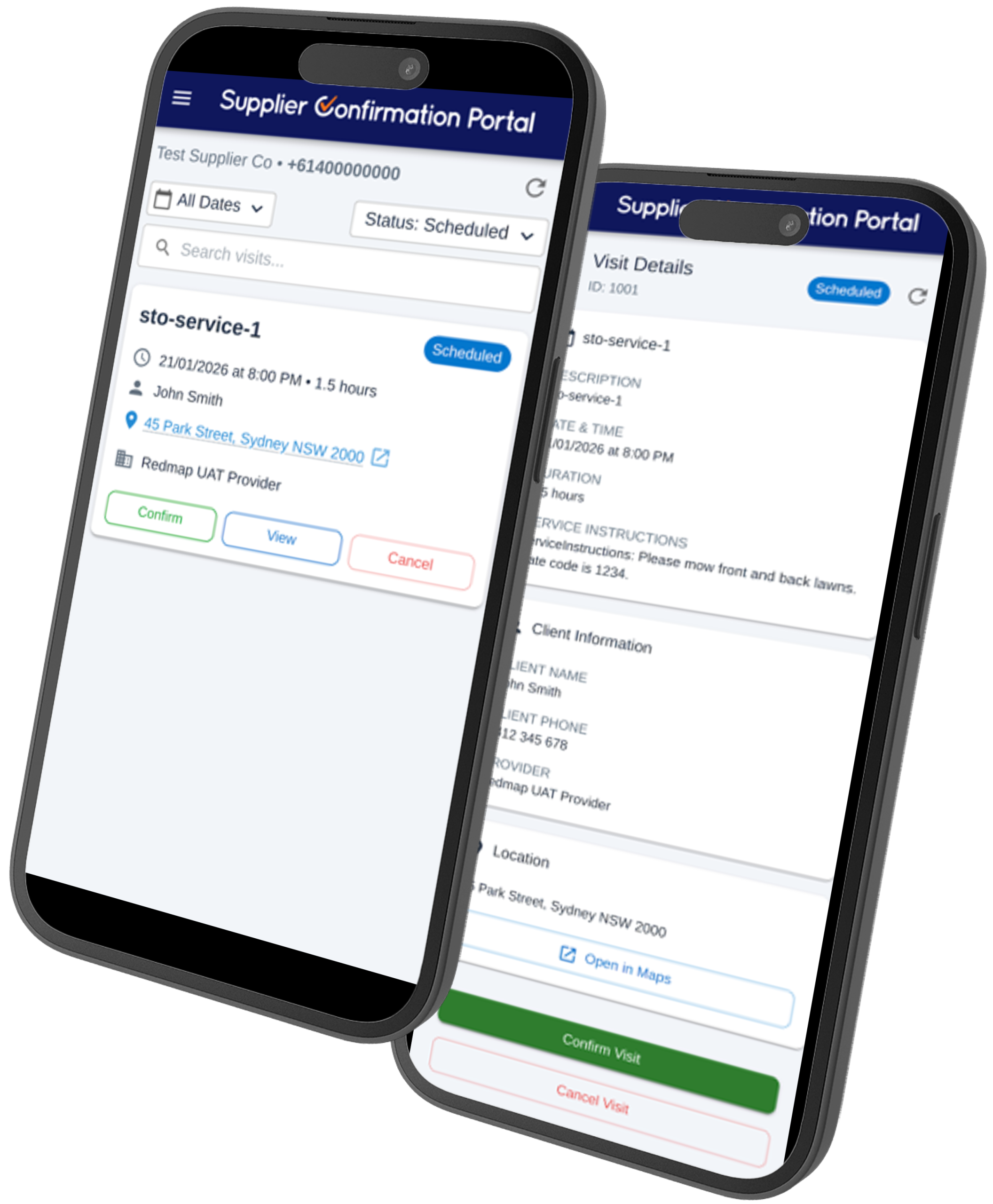
In late June 2026 we will commence rolling out the Supplier Confirmation Portal (SCP) across our homecare services. SCP is a simple online tool that allows you to confirm, cancel or reschedule the services you deliver.


Quick Links

What is Supplier Confirmation Portal (SCP)

The Supplier Confirmation Portal (SCP) is a simple online tool that allows you to confirm the services you deliver.

It ensures:

  • Accurate service records
  • Faster confirmation of completed services
  • Compliance with service delivery requirements

You can access this on your mobile, tablet or laptop/computer and it has been designed for ease-of-use and user experience.

In short

  • We schedule your visits
  • Your visits appear in the portal
  • You can view your schedule and confirm or cancel each visit
  • Your updates are automatically recorded

How it works

What you need to do

✅ For every visit:

  • Confirm the visit if it was completed
  • Cancel the visit if it was not completed

⏱️ When?

  • As soon as possible before/after each visit

⚠️ Important:

  • All visits must be actioned
  • Visits left as “Scheduled” will be followed up

How to use the portal

Step 1: Access the portal

Open the following link on your preferred device:
https://scp.redmap.com/

Step 2: Log-in

  1. Enter your mobile number
  2. Receive a one-time passcode via SMS
  3. Enter the code to log in

Step 3: View your schedule/visit

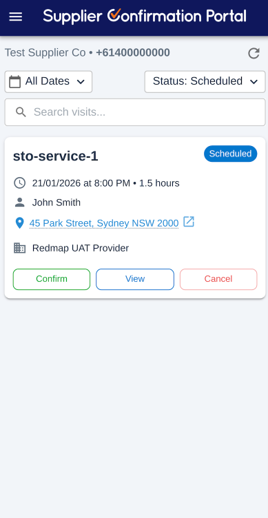
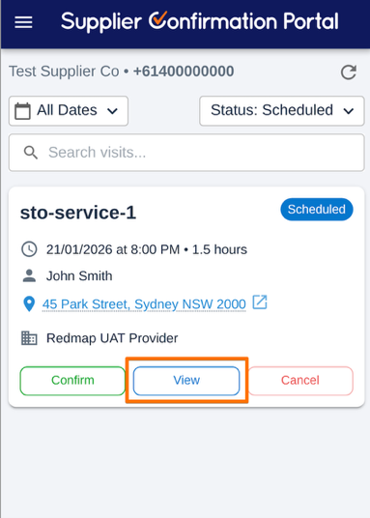
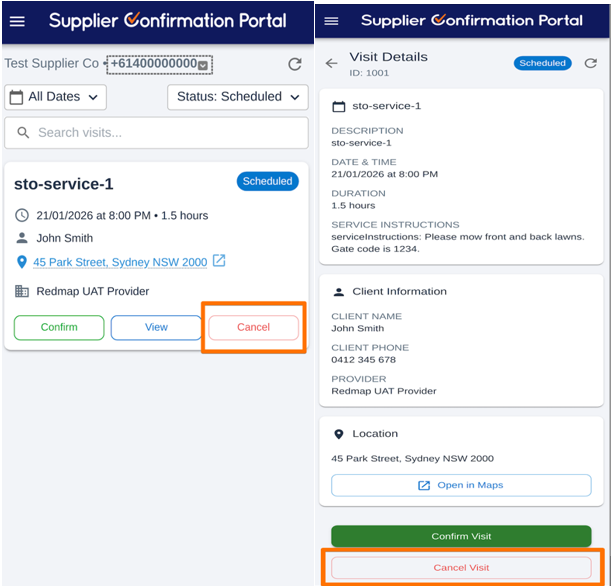
    1. Once logged in, a list of all Scheduled visits will appear:
    2. To view the details of a visit, click the ‘View’ button on the visit.
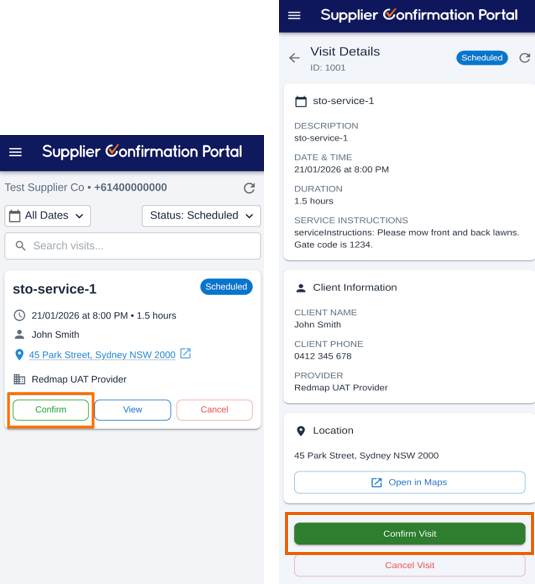
  1. The details of the visits can then be viewed, which include:
    1. Service Type
    2. Date and time of visit
    3. Duration
    4. Any Service Instructions
    5. Client Name
    6. Client Phone Number
    7. Provider of the visit
    8. Visit Address

  2. You can then Confirm Visit if it was completed or Cancel Visit if it cannot be completed

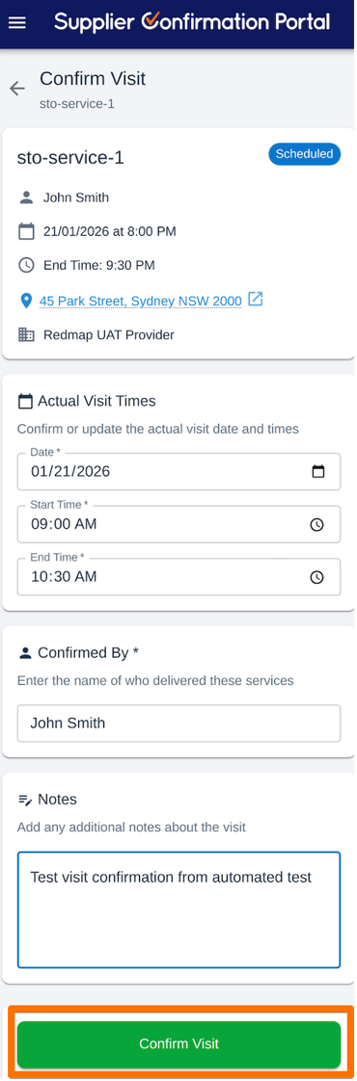
Step 4: Confirm a visit

  1. In either the Visit List or within a Scheduled visit, click ‘Confirm’ or ‘Confirm Visit’.
  2. Update the following details where required.
    1. Date the visit was actually completed (if different than what was scheduled)
    2. Start Time/End Time the visit was actually completed (if different than what was scheduled)
    3. The name of the person who delivered the service
    4. Any additional notes about the visit confirmation

  3. Click “Confirm Visit”

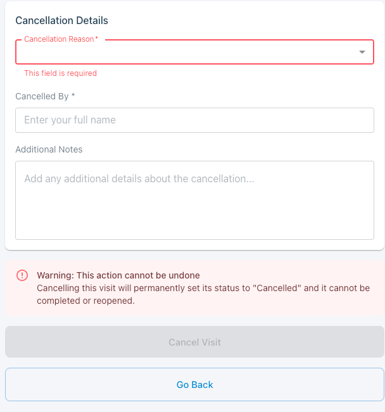
Step 5: Cancel a visit

  1. In either the Visit List or within a Scheduled visit, click ‘Cancel’ or ‘Cancel Visit’.
  2. Update the following details where required.
    1. Cancellation reason
    2. Cancelled by – Enter your name
    3. Any additional notes about the cancellation
  3. Click ‘Cancel Visit’
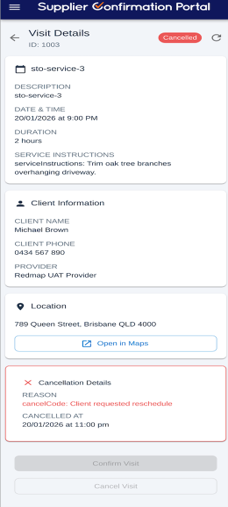
    Note: Once the visit has been cancelled, the visit can no longer be edited, and the status is updated from ‘Scheduled’ to ‘Cancelled’.

Frequently Asked Questions

What happens if I don’t confirm a visit?

  • The visit will remain “Scheduled”
  • You may be contacted to follow up

What happens after I confirm a visit?

  • The visit is recorded as completed
  • It cannot be edited
  • Your update is saved automatically

What if I need to cancel a visit?

  • Select the visit and submit a cancellation
  • Include a reason for cancellation

How do I log in?

  • Open the following link on your preferred device:
    https://scp.redmap.com/
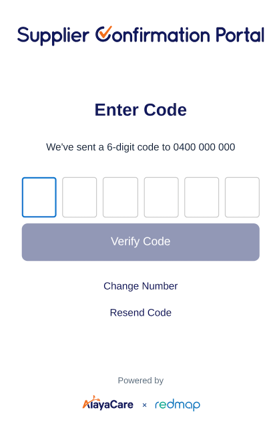
  • Enter your mobile number
  • Receive a one-time passcode via SMS
  • Enter the code to access the portal

Who can I contact for support?

Please reach out to your Regis contact with any questions you may have. They will discuss your query/issue with internal teams and come back to you with a response as soon as possible.

top